
Adding a site to Google Search Console should take five minutes. On a live WooCommerce store this month it took me about two hours, and the verification error Google showed me pointed at the wrong problem the whole time.
The short version: a security plugin blocked the verification tag, then a Cloudflare account nobody on the team knew about was stopping Google from reaching the site at all. When I moved the domain into our own Cloudflare account, the site went down with Error 1000 because Cloudflare had copied its own IP addresses into the DNS records. Deleting 32 bad records brought it back.
This is the full story, with the screenshots I took while fixing it, and a checklist at the end you can use when your own verification fails.
The setup
The client is a Bangladeshi stationery business that sells its own notebooks, sketchbooks and paper alongside pens and office supplies from other brands. The store runs on WordPress and WooCommerce with the Flatsome theme, close to 2,000 products, and Wordfence for security. It is hosted on a shared cPanel server.
They had just signed a three-month SEO engagement with us at Zass Tech. Before I could audit anything, I needed Search Console access. No Search Console, no query data, no plan.
I built the site myself, so I assumed I knew every layer of it. That assumption turned out to be the first mistake.
Problem 1: Wordfence blocked the verification tag
I picked the HTML tag method and pasted Google's meta tag into a code snippet plugin. When I hit save, Wordfence threw a full-page block: "A potentially unsafe operation has been detected in your request to this site."
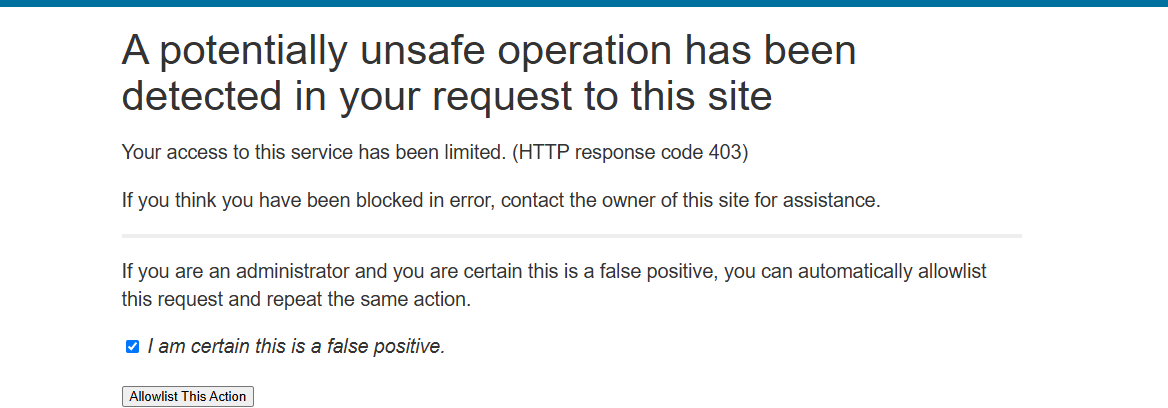
Later, in Wordfence's Live Traffic log, I found the exact reason. The request was "blocked by firewall for XSS: Cross Site Scripting in POST body", and the POST body was my <meta name="google-site-verification" ...> tag. To a web application firewall, a form submitting raw HTML into the site looks exactly like someone injecting code.
The fix: Wordfence offers an "Allowlist This Action" button on the block page. It is safe to use only when you are logged in as admin and you triggered the action yourself a second ago. It allowlists that one request pattern, not the whole firewall. A cleaner route is to paste only the token (the content="..." value) into an SEO plugin's verification field, which does not trip the XSS rule.
With the firewall out of the way, I tried again. Verification still failed.
Problem 2: "Could not find your site"
I tried two different plugins to place the tag. Both times Search Console returned "Ownership verification failed" with the reason "Could not find your site. Please check that you provided the correct URL for your property."
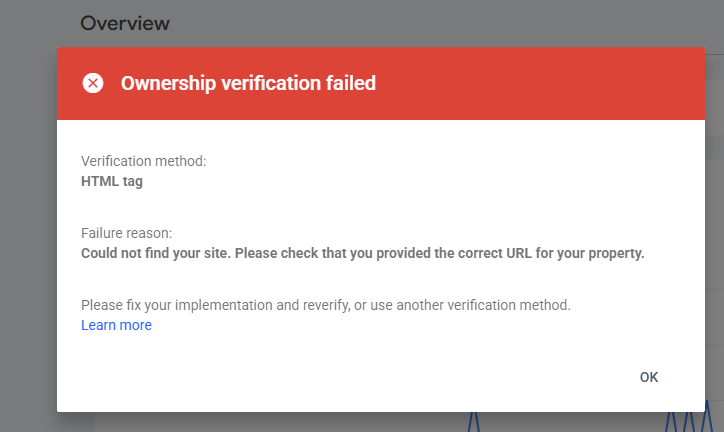
Most people read that message and start re-checking the tag. That is the wrong place to look. "Could not find your site" means Google never got a page back. It could not tell whether the tag was there because it never saw the HTML. Switching plugins was never going to help.
To prove it, I ran the homepage through Google's Rich Results Test. It fetches the page as Googlebot and works on any URL, verified or not. The answer: "URL is not available to Google. It cannot be tested." Crawl failed.
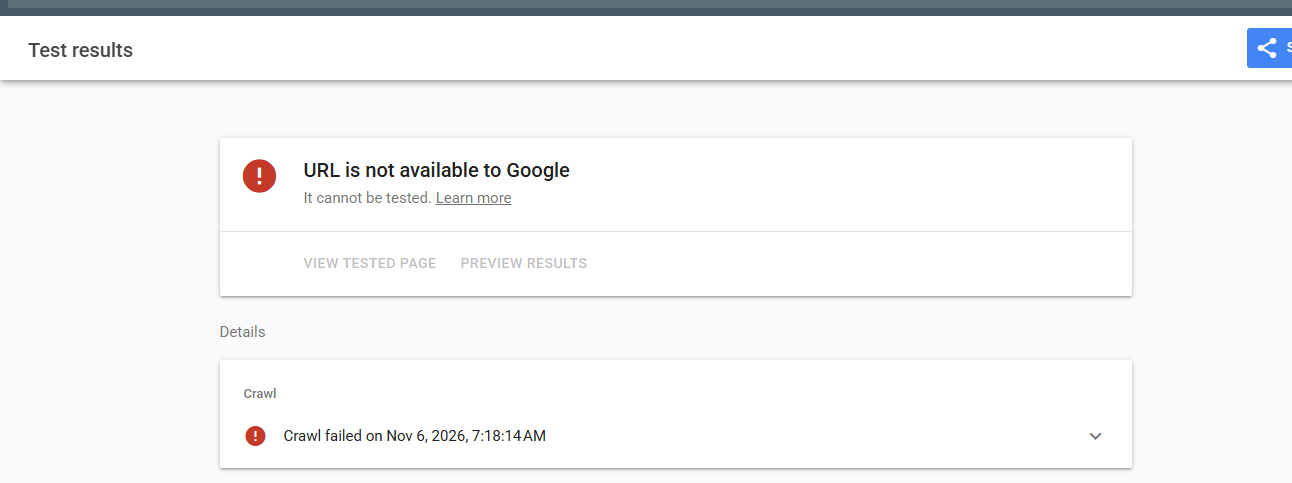
Now the question was different. Not "why is the tag wrong" but "what is standing between Googlebot and this server".
Problem 3: a Cloudflare account nobody remembered
My first suspect was Wordfence again, so I went through it properly:
- Rate limiting was set so verified Google crawlers are never limited, and every limit was "Unlimited" with "throttle", not "block".
- Blocking stats showed only 3 blocked requests from the United States in seven days. Google crawls from the US, so a country block would have shown far more.
- Live Traffic had zero blocked Googlebot requests. The Rich Results Test I had just run did not appear in the log at all.
That last point mattered most. If the request never reached WordPress, nothing inside WordPress was blocking it. Something sat in front of the server.
A quick nameserver lookup on dns.google answered it. The domain was on Cloudflare nameservers, and the A records resolved to Cloudflare's own IP ranges (104.21.x.x and 172.67.x.x), which means full proxy. Every visitor, Googlebot included, went through Cloudflare first.
The odd part: I had not put it there. The client did not remember doing it either. I checked the hosting control panel and the host's client area for a Cloudflare integration and found none. A second domain owned by the same client used the exact same pair of Cloudflare nameservers. Cloudflare gives every account its own nameserver pair, so both domains were sitting in one account that neither of us could open.
Two things saved the day:
- The domain was registered with the same host, under the client's login. Whoever owned the Cloudflare account, we controlled the nameservers.
- I searched my own inbox for Cloudflare emails and found the account I already had. I added the domain there instead of chasing the unknown owner.
I also uploaded Google's HTML verification file to the site root through cPanel and confirmed it loaded in a browser. It still failed for Google, which confirmed the block was at the Cloudflare edge, not on the server.
I never got into the old account, so I can't tell you exactly which setting there blocked Google. In my experience the usual suspects are Bot Fight Mode, a country rule that challenges traffic from outside Bangladesh, or "Under Attack" mode.
Site structure, on-page, and content strategy that compounds organic traffic.
Problem 4: Error 1000 and a DNS zone full of duplicates
I added the domain to our Cloudflare account and switched the nameservers at the registrar. Cloudflare showed it as Active. Then I opened the site and got this:
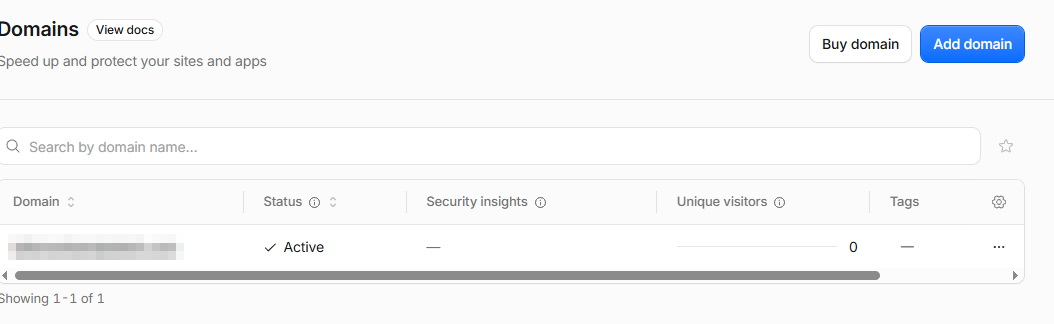
Error 1000: DNS points to prohibited IP.
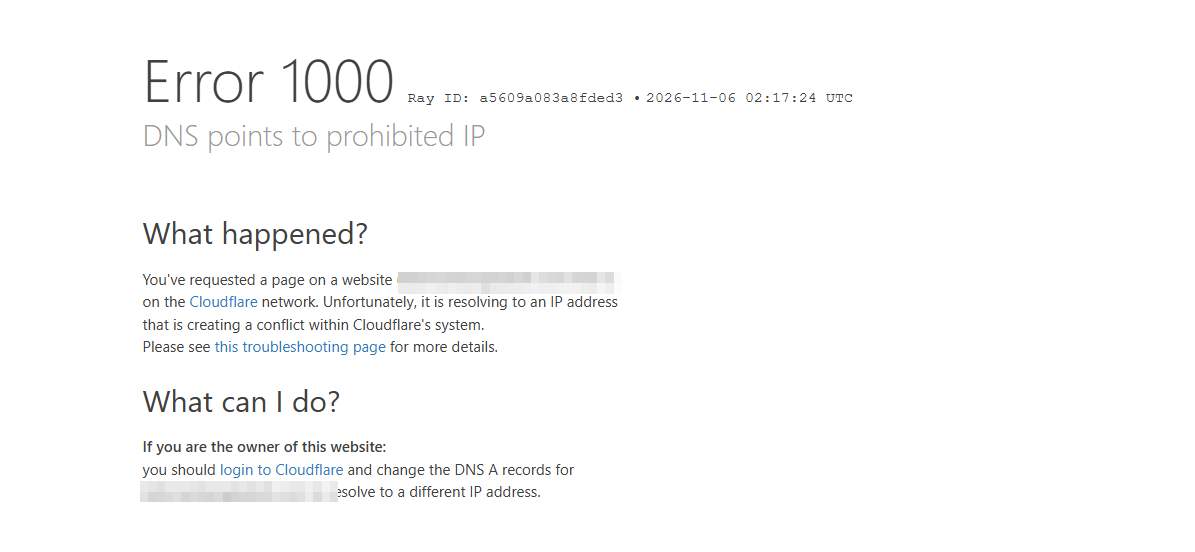
The store was now down for every visitor, not just Google.
Here is what happened. When you add a domain, Cloudflare scans the existing DNS and copies the records into the new zone. But at the moment of the scan, the domain was still behind the old Cloudflare account, so every lookup returned Cloudflare proxy IPs. Cloudflare dutifully copied those as A records. A proxied record pointing at Cloudflare's own IP is a loop, and Cloudflare refuses it with Error 1000.
The real server IP was easy to find: it was listed in the hosting control panel. So I wrote a clean zone file with the correct IP for every hostname and imported it.
The import came back with a list of "An identical record already exists" errors. That looked like a failure, but it was half good news: the correct records were already in place from my first attempt. The problem was that Cloudflare's import adds records, it never replaces them. The old bad records were still there next to the good ones.
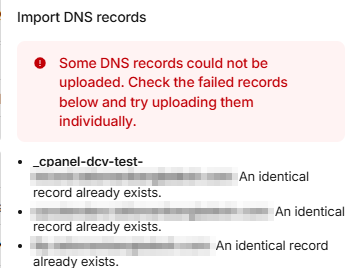
I exported the zone to see the whole picture. Every hostname had three A records: one correct, two pointing at the old Cloudflare IPs. Cloudflare rotated between them, so the site failed on most requests. On top of that:
- 10 AAAA records pointing at Cloudflare IPv6 addresses
- An MX record pointing to a broken
_dc-mxplaceholder, which meant the shop's email would not have been delivered - A leftover
_acme-challengeTXT record from an old SSL check
I searched the DNS table by each bad IP, selected all matches and deleted them in bulk. In total: 32 records deleted, 46 down to 14. Every hostname ended up with exactly one A record. Only the main domain and www stay proxied. Mail, webmail, cPanel and FTP are DNS only, because those services do not work through Cloudflare's proxy.
A minute later the homepage loaded normally and Google's verification file was reachable again.
The whole path on one page
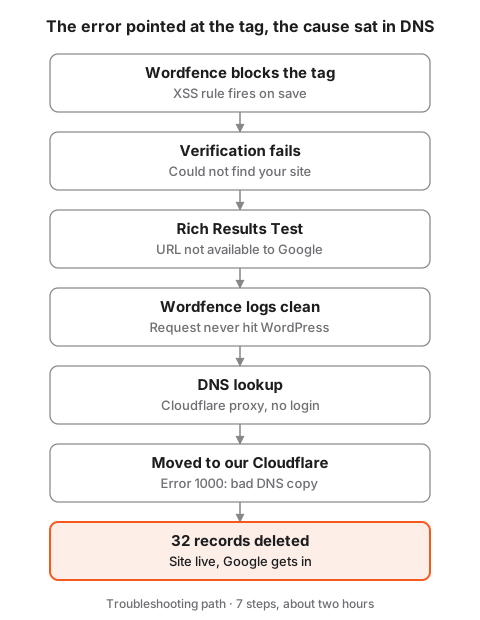
The first three steps all looked like WordPress problems. The turn came when the logs showed the request never reached WordPress.
The result, and what I'd do differently
By the end of the morning the store was back online, the DNS zone was clean, email routing was fixed, and the Cloudflare account sat with us, where we can see and change it.
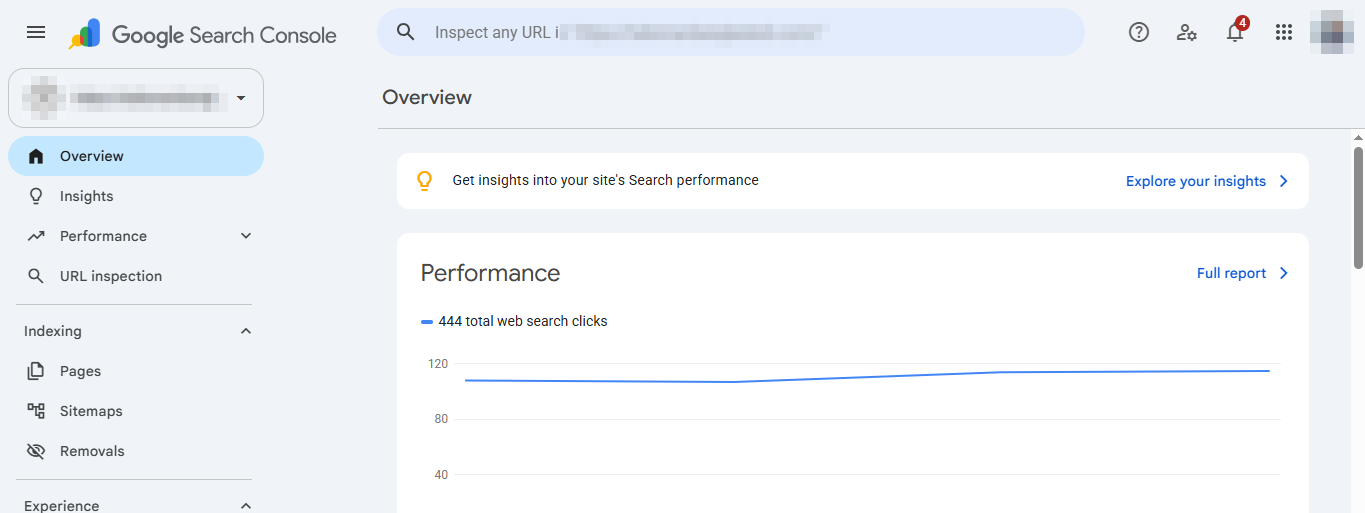
Search Console verified the same day. The Performance report filled in straight away, showing about 110 clicks a day from Google, which became the baseline for the SEO work.
What I'd do differently next time:
- Check DNS before touching the site. A 30-second nameserver lookup would have shown Cloudflare in front of the server before I spent time on plugins.
- Read Google's error literally. "Could not find your site" is a reachability error, not a tag error.
- Clean the DNS zone right after adding a domain to Cloudflare. If the domain was already behind another Cloudflare account, the scan imports Cloudflare's own IPs. Fix them before switching nameservers, not after the site goes down.
- Keep an access list per client. Registrar, host, DNS, Cloudflare, Search Console, Analytics: who owns each login. The client did not know who had set up Cloudflare, and neither did I.
Checklist: when Search Console verification fails
Work through these in order. Each step rules out one layer between Google and your site.
1. Read the error message first
| Error in Search Console | What it really means | Where to look |
|---|---|---|
| Could not find your site | Google got no page back | Firewall, CDN, DNS, hosting (steps 2 to 5) |
| Your verification meta tag was not found | Page loaded, tag missing | Caching plugin, wrong page, tag in the wrong place |
| The connection to your server timed out | Server too slow or dropping bots | Hosting, rate limits |
| Incorrect HTML file content | File exists but is wrong | Re-download the file, upload it unchanged |
2. Test what Googlebot sees
- Run the homepage through Google's Rich Results Test. "URL is not available to Google" means Google is blocked before it reaches the page.
- Open the site in an incognito window, off your office network. Maintenance or "coming soon" plugins often show the real site only to logged-in admins.
3. Check your security plugin
- Wordfence: Tools > Live Traffic. Filter by Google crawlers and look for anything marked blocked.
- Rate limiting: let verified Google crawlers through without limits, and throttle rather than block.
- Country blocking: Google crawls mostly from the US. A "local visitors only" rule blocks Google too.
- If saving the verification tag triggers a firewall block, paste only the token into your SEO plugin, or use the HTML file or DNS method.
4. Check DNS and the CDN in front of the site
- Look up the nameservers (dns.google or any DNS lookup tool). If they belong to Cloudflare or another CDN, the request is filtered there first.
- Make sure you can log into that account. If you can't, find out who owns it before anything else.
- In Cloudflare: turn off Bot Fight Mode, check WAF custom rules for country or challenge rules, make sure "Under Attack" mode is off.
- Cloudflare AI Crawl Control: allow the search crawlers you want, including the ones AI search tools use.
5. If you move a domain into a new Cloudflare account
- Check every A and AAAA record after the scan. An IP in Cloudflare's own ranges (for example 104.16 to 104.27, 172.64 to 172.71, or IPv6 starting 2606:4700; full list at cloudflare.com/ips) is the proxy, not your server. Replace it with your real server IP from the hosting panel.
- Remove
_dc-mxplaceholder MX records and point MX at your real mail host. - Keep mail, webmail, FTP and cPanel records as DNS only (grey cloud).
- Remember that zone import adds records. Delete the bad ones yourself.
- Set SSL to Full, and Full (strict) once the server's own certificate is valid.
6. Pick the verification method that skips the problem
- DNS TXT record (Domain property) is the most reliable. Google never needs to load the site, and it covers http, https, www and non-www in one go.
- HTML file upload is the next best. It avoids firewall rules about HTML in form posts.
- Meta tag is the most fragile on sites with security plugins and page caching.
7. Don't publish what attackers can use
- If you share your own case study, blur the origin server IP, DNS exports and account emails. The whole point of a proxy is that nobody knows the server's real address.
Full-funnel campaign management, from setup to scaling spend profitably.